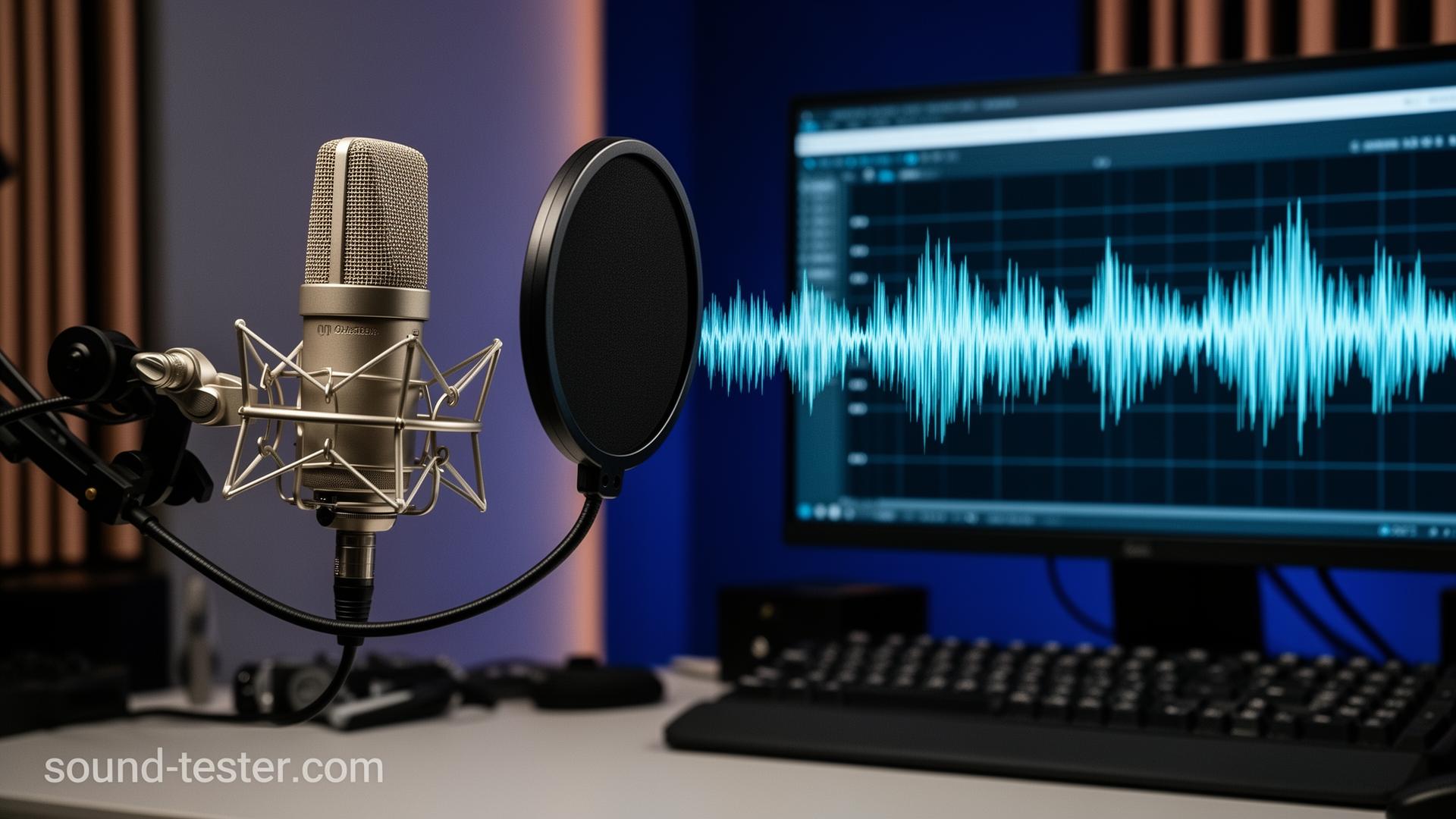
We've all been there: "Can you hear me? Hello? Is this thing on?" Let's skip that awkwardness. Our mic test shows you exactly what's going on with your microphone before your next call, recording, or stream. And if you want to make sure your environment isn't too noisy, check it with our sound level meter.
Why Test Before You Need It?
Nothing's worse than joining an important video call and realizing nobody can hear you. A 30-second test beforehand saves you from that panic. Plus, testing helps you understand your mic's quirks: where to position it, how loud to speak, what background noise it picks up. It's like a quick soundcheck before the real show.
Reading the Level Meter
When you speak at a normal volume, the meter should bounce to around 50-75% of the way up. Too low? You'll sound distant and quiet to everyone else. Too high (hitting the red)? You'll get distortion and clipping. Find that sweet spot where you're clearly audible without maxing out the meter.
Different Mics, Different Needs
USB mics are plug-and-play, just connect and go. Headset mics stay in a consistent position which is great for calls. Lavalier mics let you move around freely. Pro XLR mics need an audio interface but sound amazing. Whatever you're using, our test works the same way. We just want to see if audio is making it to your computer.
Common Problems (and Quick Fixes)
Background noise from fans or traffic? Move the mic closer to your mouth so your voice is louder relative to the noise. Echo or feedback? Your speakers might be playing sound that the mic picks up, so use headphones instead. Low volume? Boost your input gain in system settings. Crackling? Check for loose cables or try a different USB port. If you want to verify your output is working too, run our speaker test and headphone test.
Getting the Position Right
For most microphones, talking at a 45-degree angle from about 6-12 inches away works well. This gives you clear audio without harsh "P" and "B" sounds popping. USB condenser mics often benefit from a pop filter. Headset mics should sit at the corner of your mouth. Experiment while watching the level meter to find what works best for your setup.
Check Your System Settings
Before testing, make sure your mic is actually selected as the input device in your system settings. If you have multiple mics (webcam, headset, external), your computer might be listening to the wrong one. Verify the input volume isn't muted or set to zero. And check that browser permissions allow microphone access.
Privacy: We Don't Keep Anything
All audio processing happens right in your browser. Your voice never leaves your device, never touches our servers, and disappears completely when you close the tab. We're just helping you test your mic. What you say is your business, not ours.